

Before You Start
- You need permission to manage the Knowledge Base.
- Files uploaded directly from your computer, such as PDFs or CSVs, do not support auto-sync. Import the file from Google Drive if you want Conduit to check it on a schedule.
- If Conduit says a Google Drive file or link must be re-imported, re-import it before turning on auto-sync.
Supported Sources
Notion, Airtable, Google Drive, and PMS sources can sync Daily, Weekly, Every 2 weeks, or Monthly. Links can sync Weekly, Every 2 weeks, or Monthly.
Turn On Auto-sync
1
Open Sources
Click Knowledge in the main sidebar, then click Sources at the
bottom of the Knowledge sidebar.
2
Choose a source
Open the page for the source you want to schedule.
3
Set the schedule
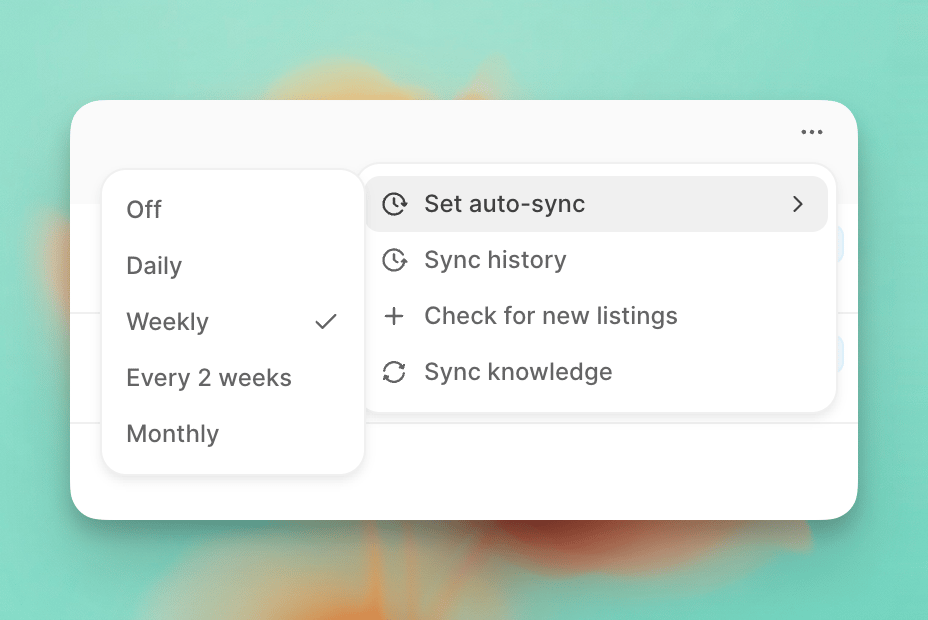
Open the three-dot menu for the source, choose Set auto-sync, then
choose an available schedule.
Auto-sync checks sources at intervals, not at a fixed time. Choosing a
schedule does not sync immediately. To check the source immediately, use its
manual sync action, such as Resync, Sync now, or Sync knowledge.
Connected source rows show when the next sync is expected.
Set a Schedule for Multiple Sources
On a Notion, Airtable, or Google Drive source page, select sources before using Set auto-sync to change only those sources. If you do not select any sources, the schedule applies to every eligible source on the page.Check Sync Status
Notion, Airtable, and Google Drive source rows show the latest result and the next scheduled sync. Click one of these sources to open its sync history. For PMS Knowledge, open the three-dot menu and choose Sync history.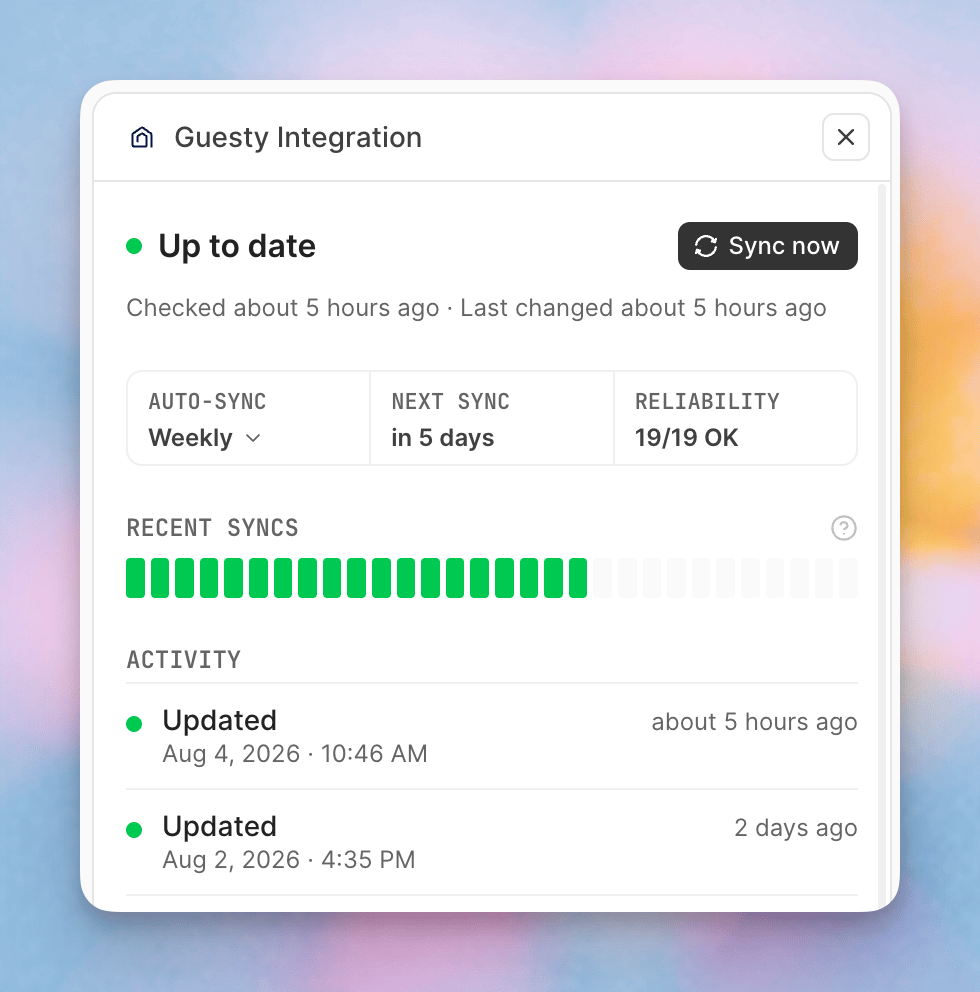
If auto-sync is paused, fix or reconnect the source, then click Resume & sync now.