

To run an agent a set time before or after each reservation’s check-in or check-out, use a Check-in or Check-out platform event instead of a schedule.
Create a schedule
1
Add a schedule
Select Add schedule.
2
Choose when it runs
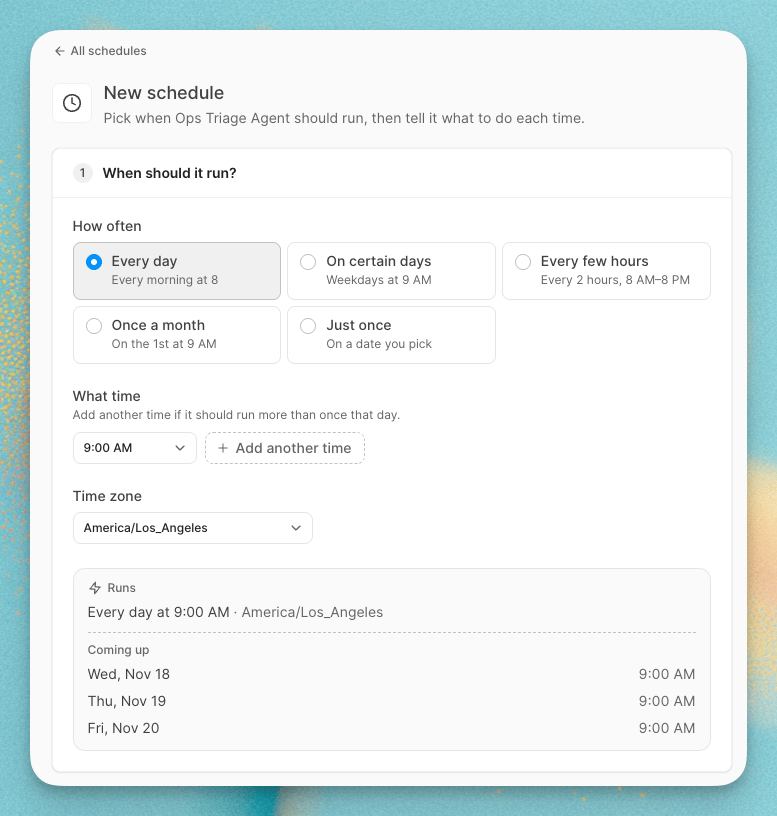
Under When should it run?, pick How often, then fill in the times. See Schedule options.
3
Pick the time zone
Choose the Time zone the schedule follows. The preview below it shows the cadence in words and the next few runs under Coming up.
4
Tell the agent what to do
Under What should the agent do?, write the task. The agent gets these instructions every time this schedule runs, so write them the way you’d brief a teammate. To start from an example, select Arrivals check, Unanswered messages or Weekly summary.
5
Try it
Select Try it now to run the agent once with this task and see what it does. Follow the run in the Activity tab.
6
Save
Select Create schedule.
Schedule options
For daily, weekly and monthly schedules, select Add another time to run more than once a day, up to 6 times.
Every few hours runs at most every 12 hours, and only between the first and last run you set. This keeps the agent from running overnight while guests and your team are asleep.
For Once a month, months without the day you picked are skipped. Pick last day to always run at the end of the month.
A Just once schedule runs one time, then turns itself off.
Write a good scheduled task
A scheduled run has no message to react to, so the task is all the agent knows about why it’s running. Make it specific:- Say what to look at. “Today’s arrivals”, “conversations waiting more than an hour”, “tasks due tomorrow”.
- Say what done looks like. “Post one Slack message listing each listing and its status.”
- Say what to skip. “Ignore owner stays”, “Don’t message guests directly”.
Manage schedules
Each schedule in the list shows its cadence, its task, and a status line. Select a schedule to edit it.
An agent can have up to 20 active schedules.
Schedule status
Resuming a schedule clears its failure count and works out the next run from now.