

Templates vs. automations
For example, a “Departure clean” template holds the cleaning checklist and the cleaner’s rate. An automation that uses it creates a departure clean at every check-out.
One template can be used by several automations, and one automation can use several templates. You can also pick a template by hand when you create a task.
Create a template
- Go to Operations > Automations and open the Templates tab
- Click New template
- Enter a Template name and, optionally, a description of when to use it
- Under Requirements, add checklist items. Group them into sections, such as Interior or Exterior, and areas within a section. Items use the same types, photo requirements and conditional steps as task checklists
- Set the defaults for tasks made from this template: Status, Priority, Assignee, Estimated time, custom fields, Due at time and Charge rate
- Pick a Task category. It’s required
- Under Apply to properties, pick the properties or listing groups that use this template
- Click Create template
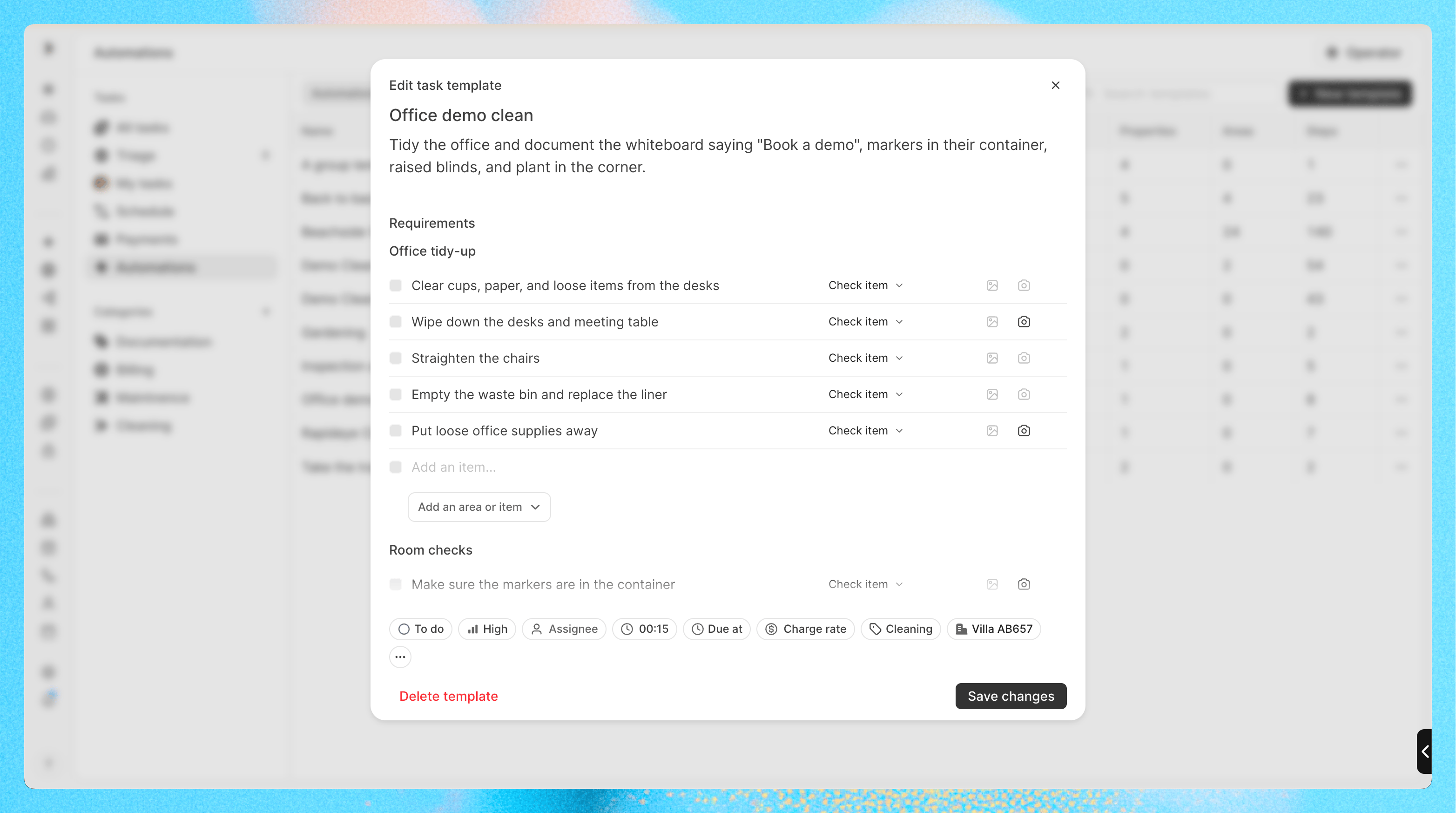
Edit or delete a template
Open the template from the Templates tab, make your changes, and click Save changes. Conduit asks what to do with tasks that automations already created from it:- Keep existing tasks: only new tasks use the changes
- Update upcoming tasks: applies the saved details and schedule, creates missing tasks, and removes tasks that no longer match
Customize a template for one property
Sometimes one property needs something different, like an extra step or a different cleaner. You don’t need a separate template and automation for it.- Open the property from Properties and go to the Tasks tab
- Open the Templates tab. It lists every template that applies to this property
- Change what you need for this property:
- Add, edit or remove checklist items. Changed items show Overridden, and the rest follow the template
- Add instructions just for this property. They’re added below the template description on new automated tasks
- Set a preferred assignee for each category, like the property’s regular cleaner
- Set a different charge rate