

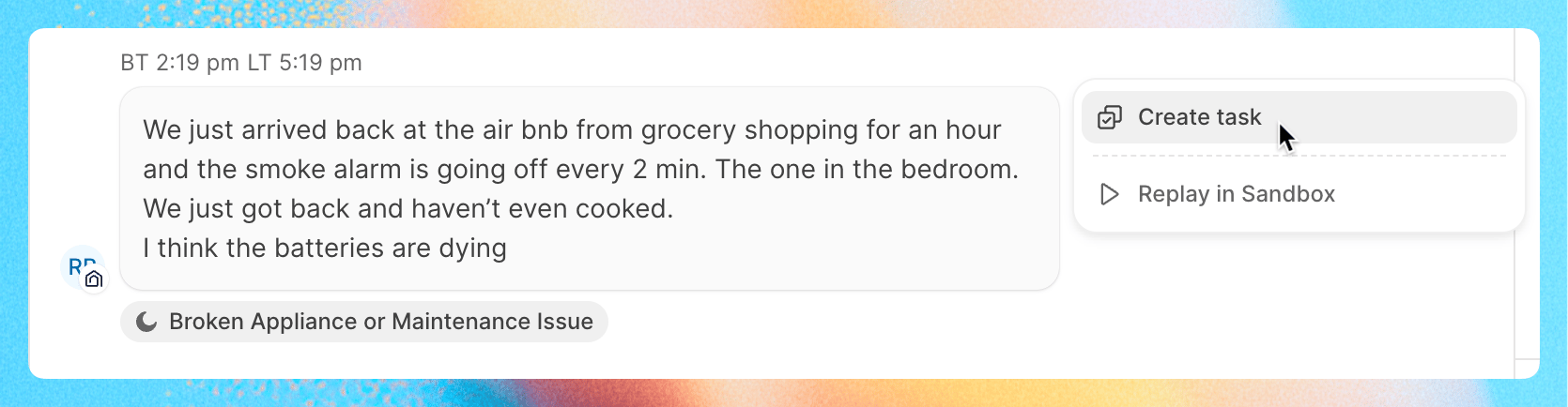
- You create them by hand, from Operations or from a message in the inbox
- Automations create them from reservations, vacancies or a repeating schedule
- Issues your team reports and tasks AI agents create, which land in Triage for approval
Create a task
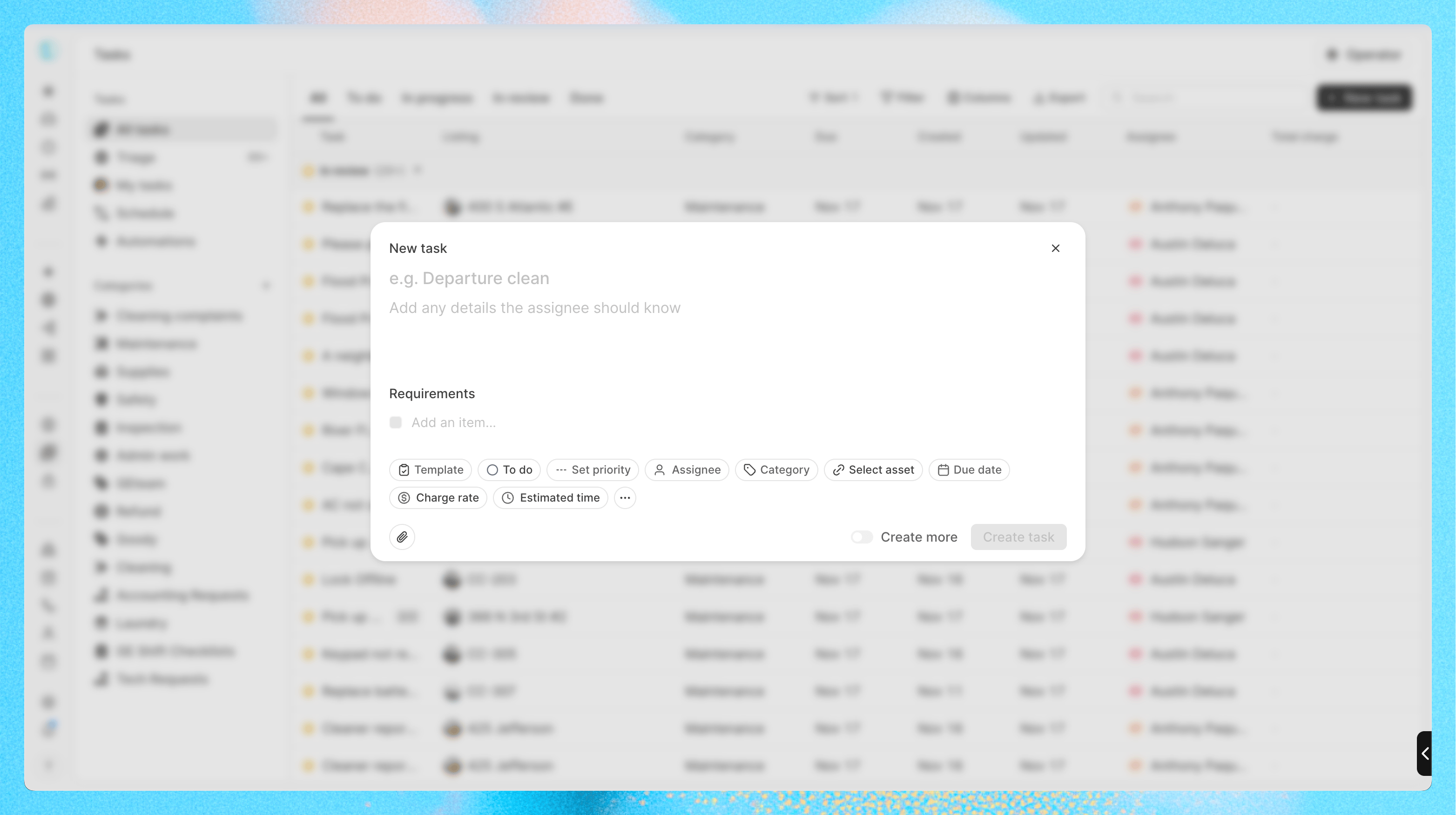
- Go to Operations > All tasks (or Schedule) and click New task
- Enter a title, such as “Departure clean”
- Optionally pick a Template to fill in the checklist and details from a template
- Set the details you need (all optional):
- Status, Priority (Urgent, High, Medium or Low) and Assignee. You can assign more than one person
- Category
- Select asset: the property or reservation the task is for
- Due date
- Charge rate, per hour or per piece. See Payments
- Estimated time
- Any custom fields
- Add a description, attachments and checklist items under Requirements
- Click Create task. Turn on Create more to keep the dialog open for the next one
Checklists
Checklist items are the steps the assignee completes. Each item has a type:
You can also require a photo on an item, and add a reference photo that shows what “done” looks like.
Conditional steps
A conditional step only shows up when an earlier Condition step has a certain answer. For example, an “Any damage?” Condition step with the options “Yes” and “No” can show “Photograph the damage” only when the answer is “Yes”.- Add a Condition step and list its options
- On a later step, click the conditional icon (Make conditional)
- Pick the Condition step and the option that shows this step. Pick Always show to make it a normal step again
Work a task in the mobile app
Your team works their tasks in the Conduit mobile app. See Mobile app for a walkthrough.Find tasks
- All tasks lists every task. Use the tabs to show All, To do, In progress, In review or Done. Done includes cancelled tasks
- My tasks shows the tasks assigned to you
- Categories in the sidebar opens the tasks in one category
- Filters narrow the list by status, priority, origin, assignee, category, property, listing group, date or custom field. Filters also offer a Deleted view
- Group the list by status, assignee, priority, property, category or origin
- Export downloads the tasks