Go to Operations > Schedule to plan the work. The schedule has three tabs:
  • By user: one lane per person for a single day
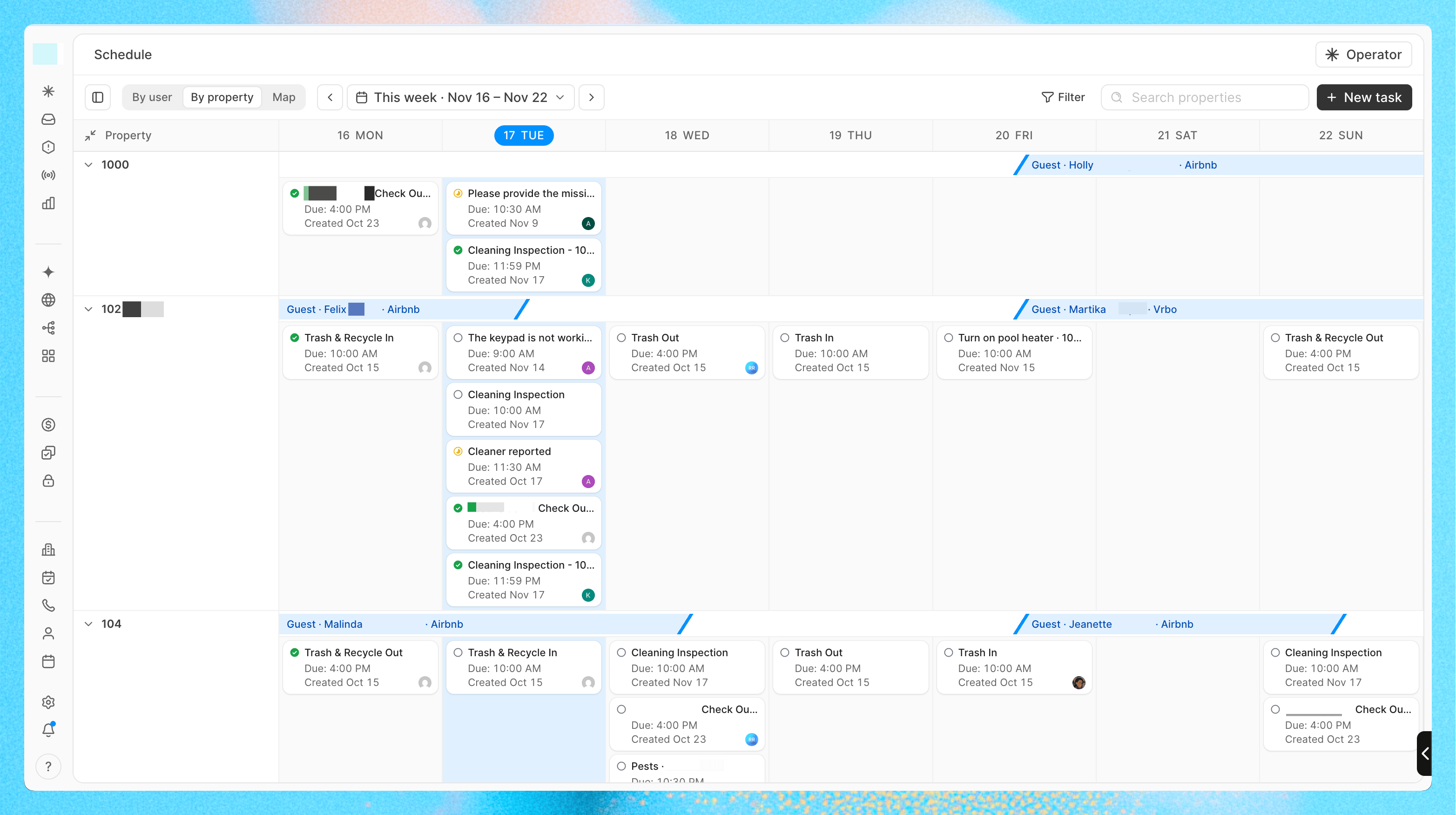
  • By property: one row per property for a week, with its stays and tasks
  • Map: where your team and the day’s tasks are. See Map and shifts
Use the arrows next to the tabs to move between days or weeks. Click New task to create a task from here, and click any task to open it in a side panel.

By user

Each person with tasks that day gets a lane, plus an Unassigned lane. Choose how the lanes look:
  • List: a table of the day’s tasks
  • Board: a column of task cards per person
  • Rows: a row per person
Drag a task to another person to reassign it, or within a lane to change the order. If the person is unavailable at that time, Conduit warns you.

By property

The By property schedule for a week, with reservations above each property's tasks
Each property gets a row for the week, showing its reservations and the tasks around them. This makes it easy to see check-ins, check-outs and turns next to the cleans they need. Drag a task to another day to reschedule it.

Filter the schedule

Use Filters to narrow the schedule by category, status, assignee, listing group or role. Filtering by role (in By user) shows only the people with that role, such as cleaners when you plan cleaning tasks. Search finds tasks in List, people in Board and Rows, and properties in By property. Cancelled tasks don’t appear on the schedule.