

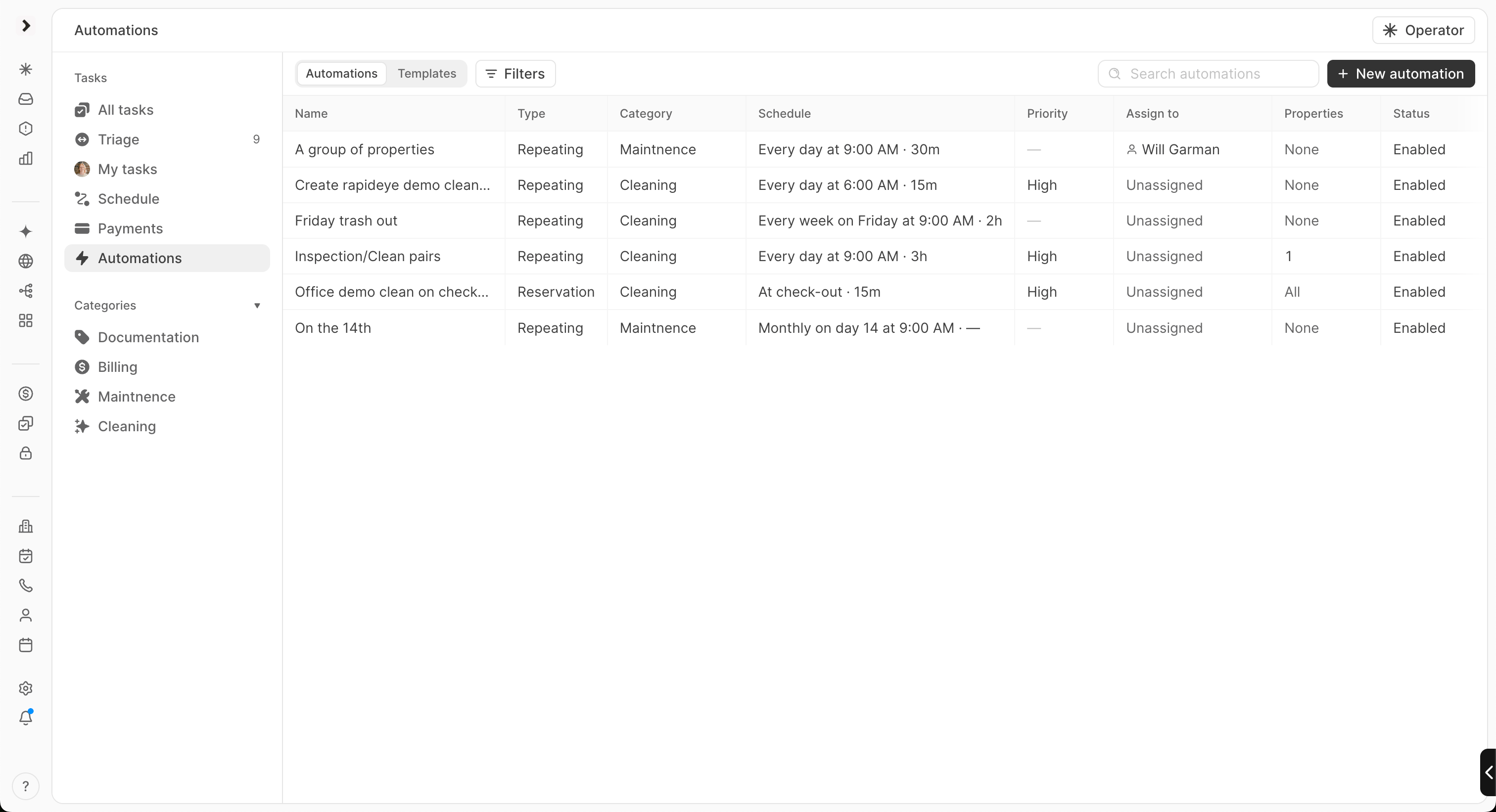
Create an automation
- Go to Operations > Automations and click New automation
- Enter an Automation name
- Under Create tasks, choose what each task contains (see Task source)
- Under Applies to, pick the templates and properties
- Under When, choose a Trigger and set its timing (see Triggers)
- For New reservation and During a stay, optionally add Only if conditions
- Click Create automation
Task source
- Template: pick one or more templates under Applies to. Each template makes its own task, and the task gets the template’s category, checklist and defaults
- Custom task: define the task in the automation itself: title, description, checklist, Status, Priority, Assignee, Category, due time, charge rate, estimated time and custom fields. A category is required
Applies to
Pick the properties the automation runs for. Leave it empty to run for every property. When you use templates, you can only pick properties those templates apply to, and each template only makes tasks at its own properties.Triggers
New reservation
Scheduled for sets the time: an amount in minutes, hours or days, before or after one or more reservation events:- Check-in (no turn) and Check-in (turn)
- Check-out (no turn) and Check-out (turn)
During a stay
- Create the first task a number of days after Check-in. Check-in and check-out days don’t count
- Turn on Repeat during the stay and set Repeat every to keep creating tasks every few days until the guest checks out
During a vacancy
A vacancy is a stretch at a property with no check-in, check-out or occupied night. Full vacant days start the day after check-out and end before the next check-in, in the property’s timezone. A booking in any unit of a property ends that property’s vacancy.- Create the first task a number of days after Check-out
- Turn on Repeat while vacant and set Repeat every to keep creating tasks every few days until the next check-in
Repeating
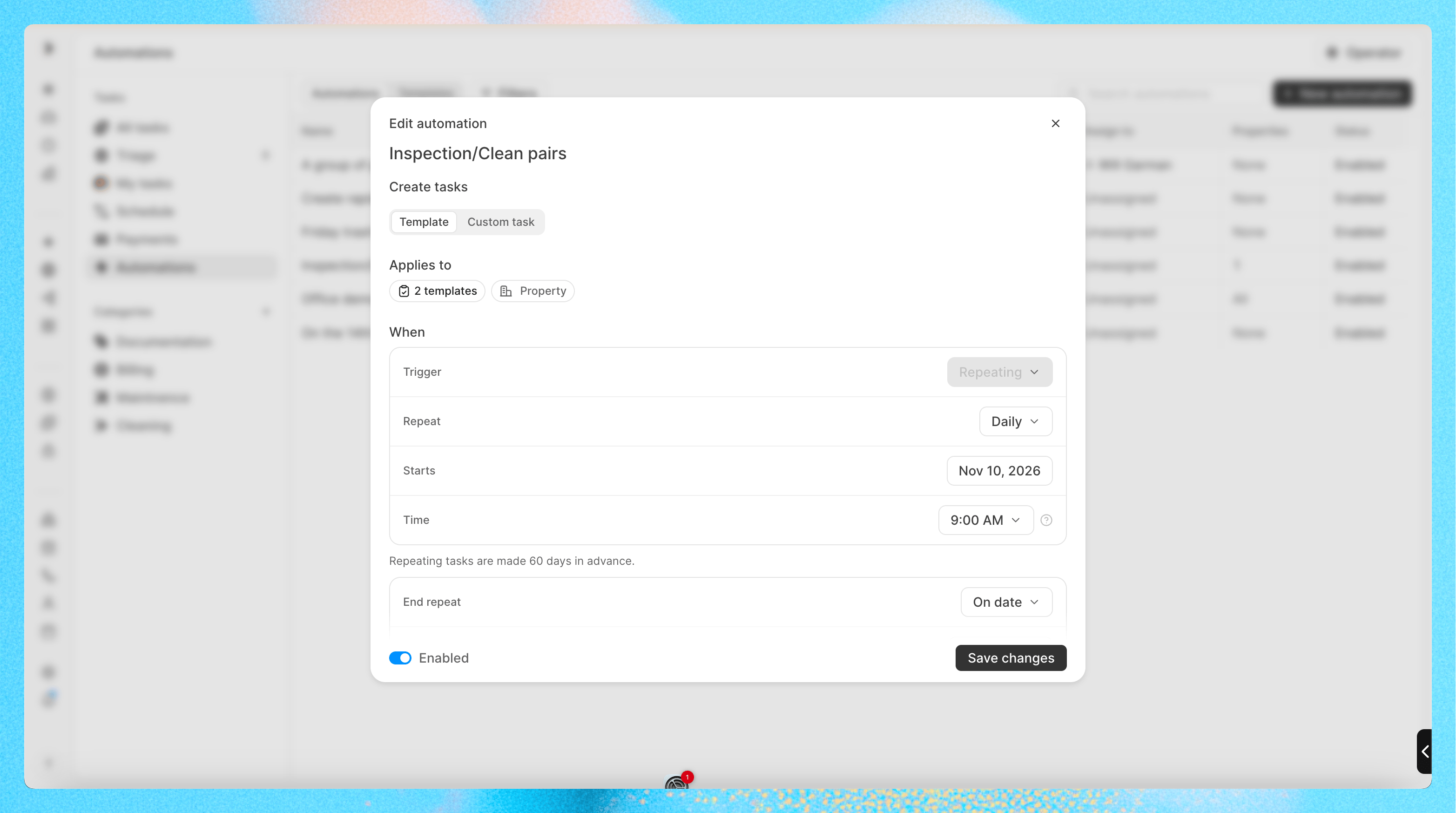
- Repeat: Daily, Weekdays, Weekly, Monthly, Yearly or Custom. Custom lets you set the Frequency and Every (for example, every 2 weeks)
- Starts: the first date
- Days of the week: for weekly schedules
- On the: for monthly schedules, either the same day number (such as the 15th day) or the same weekday (such as the third Tuesday)
- Time: in the workspace timezone
- End repeat: Never or On date
- Reschedule to the next or previous fully vacant day (the task needs a full day), checkout (it needs half a day), or checkout or checkout (turn) (it’s quick)
- Skip if nothing is available within a number of days, weeks or months. If no matching day fits that window, that date’s task is skipped. The window can’t be longer than the time between repeats, so tasks don’t overlap
Only if conditions
New reservation and During a stay automations can run only for reservations that match conditions on: Number of Nights, Days Vacant Before Check-in, Number of Guests, Number of Children, Number of Infants, Number of Pets, Booking Channel, Source, Person Type, Reservation Status, Total Price or a reservation custom field. For example, a “Deep clean after long stays” automation can run only when Number of Nights is greater than 7.Existing reservations
When you create a New reservation or During a stay automation, Create tasks for existing current and future reservations matching the automation is checked. For During a vacancy, the option is Create tasks for existing vacancies matching the automation. Uncheck it to only create tasks for reservations that come in from now on.How scheduling works
- Tasks follow reservations. When a reservation’s dates change, Conduit moves its open tasks to match and keeps the same time of day. When a reservation is cancelled, Conduit closes its open tasks
- People win over automations. If someone set a task’s date by hand, Conduit doesn’t move it. It notes the reservation change in the task’s activity instead
- Repeating tasks are made 60 days in advance. When you create a repeating automation, Conduit previews how many tasks it creates over the next 60 days
- Stay and vacancy tasks are due at the due time you set, or 9:00 AM by default
- Blocked dates without a guest, such as maintenance blocks, don’t get tasks of their own. They still count as occupied for vacancies, turns and occupied-day rescheduling
Edit, disable or delete an automation
Click an automation to edit it. You can’t change its Trigger after you create it. When you save changes, choose:- Keep existing tasks: only new tasks use the changes
- Update upcoming tasks: applies the saved details and schedule, creates missing tasks, and removes tasks that no longer match
- Started, completed, past and manually rescheduled tasks stay unchanged in every case
- Re-enabling a repeating automation recreates tasks you deleted when you disabled it. Re-enabling other automations doesn’t