

Start a chat
1
Open the agent
Go to Agents and open the internal agent.
2
Select New chat
Select New chat in the top bar, or press Cmd + Option + N (Ctrl + Alt + N on Windows). A blank chat with the agent opens in the side panel.
3
Give it a task
Describe what you want, such as “Check tomorrow’s arrivals and list any listing without a cleaning task.” You can attach files, or use the microphone to dictate instead of typing.
Pick the model for a chat
The model button next to the microphone sets the model, and its thinking effort, for this chat only. It doesn’t change the model saved on the agent.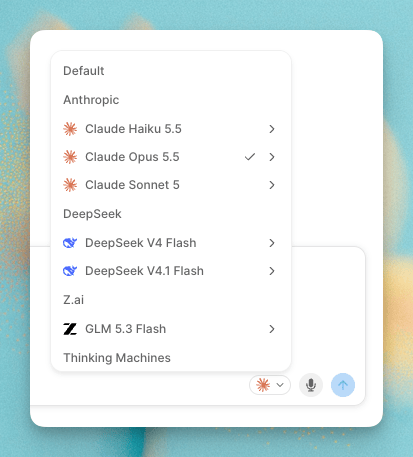
- Pick Default to use the agent’s own model.
- Models with an arrow offer a thinking effort. Open the arrow to choose one.
- You can’t switch models while the agent is working.
- Switching after the chat has started asks you to confirm. The new model picks up a conversation another model started, so answers can get worse, and the next reply is slower and costs more.
Stop a run
Press Esc twice within 2 seconds while the agent is working to stop the run. The first press only arms the stop, so a single press leaves the run going. Anything the agent already did, such as a message it sent, stays done.Subagent tasks
When the agent hands part of the job to a subagent, the chat shows that task as a card instead of a plain step. Each card shows the subagent, a status, elapsed time, the prompt it was given, its activity, and its result.
Background tasks can outlive the turn that started them. A tray above the message box lists tasks that are still running or waiting. When they finish, the chat shows a divider such as “2 tasks finished · 1 task failed”, followed by their cards, and the agent picks up from there.
When you reopen an earlier chat, its task cards show the prompt and result, but not each step or the elapsed time.
Run now with a mocked trigger
To see how the agent handles a trigger without waiting for it, select the Run now options button next to New chat. The Run now dialog fires the agent once by mocking one of its triggers.
Each run shows up in the Activity tab. Event payloads and webhook bodies must be JSON objects.
You can also start a run from each trigger page: Run now on a schedule, Try it now in the schedule editor, and Mock event on a workflow trigger. To start runs from your own code, see Run agent in the API reference.
Review activity
Open the agent’s Activity tab to see everything it has done. The tab appears once the agent has been published.Metrics
The cards at the top show the agent’s Runs, Actions and Messages sent, with the change from the previous period. Runs and Messages sent include a sparkline for the past week.Conversations
Below the metrics, the table lists one row per conversation with the agent, whatever started it: a chat, a Slack mention, a message, a schedule, a webhook or a platform event. Select a row to open the full conversation, including every tool call and subagent task. A row that is still working shows Running and when it started. A row that has just ended shows Finishing… while the run wraps up. Filter the table with:Rename a conversation
Right-click a row and select Rename to give it a name you’ll recognize later, such as “Hurricane alert, Gulf Coast”. You can also focus a row and press Cmd + Option + R (Ctrl + Alt + R on Windows).Keyboard shortcuts
On Windows, use Ctrl instead of Cmd, and Alt instead of Option.