

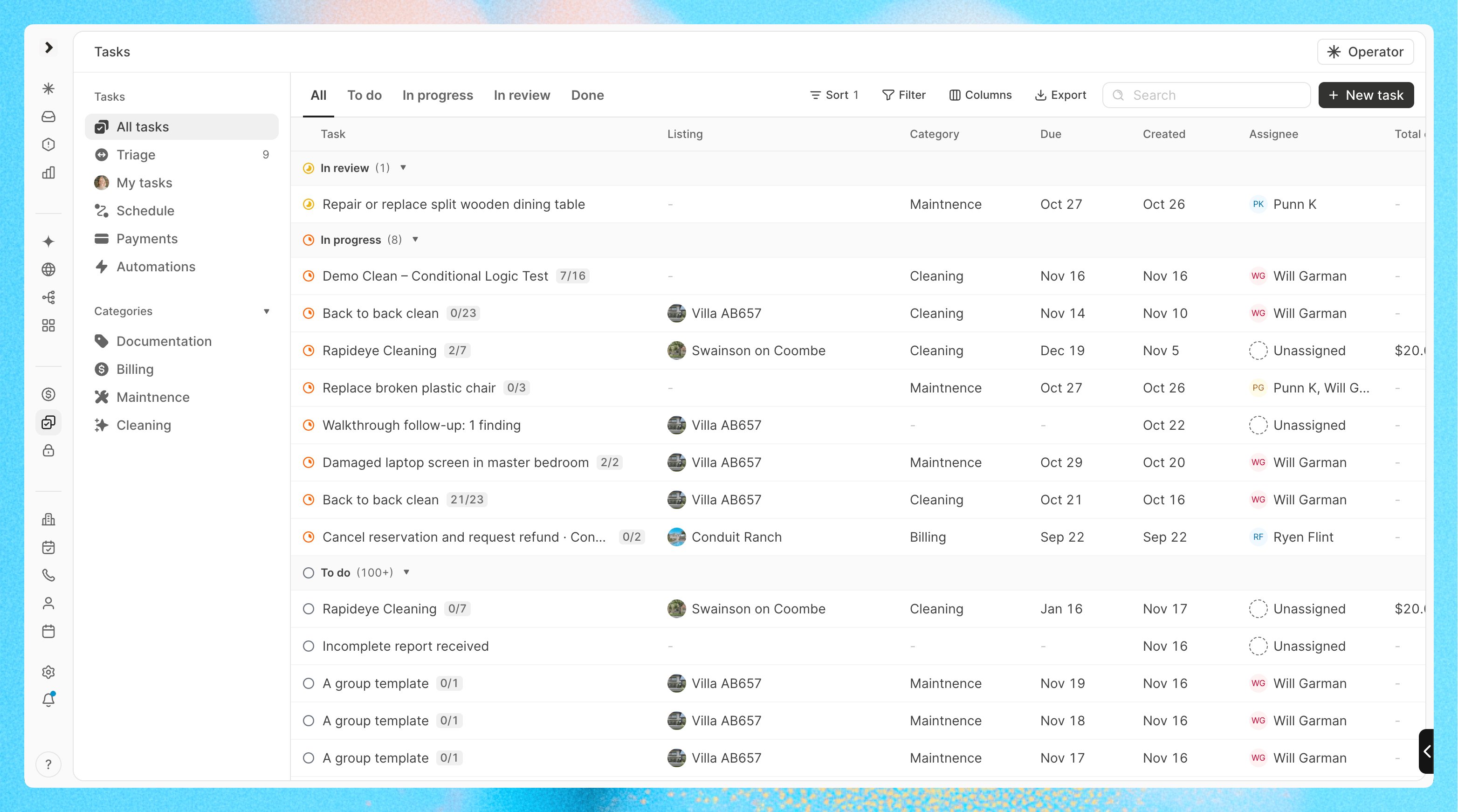
Operations is turned on per workspace. If you don’t see Operations in the sidebar, or Payments inside it, ask your Conduit team to turn it on.
How the pieces fit together
Tasks
One piece of work: what to do, where, when, who does it, and a checklist.
Templates
A reusable task definition. It says what to do.
Automations
Rules that create tasks for you. They say when to create them.
Schedule
Plan the day by person or by property, and drag tasks to reassign them.
Map and shifts
Optional. See where your team is, their routes and their recorded shifts.
Mobile app
Where your team works their tasks, checklists and photos.
Payments
Pay workers for completed tasks through Stripe.
Triage
Approve reported issues, with AI suggestions from Triage Intelligence.
- Create your task categories and statuses in settings (see below)
- Build a template for each kind of recurring work, such as a departure clean, and apply it to the properties that need it
- Create an automation that uses the template, such as “a departure clean at every check-out”
- Plan and adjust the work on the schedule. Your team works the tasks from the Conduit mobile app
- Pay the people who did the work
Set it up with Claude or ChatGPT
You can set up everything on this page by chatting with Claude or ChatGPT through the Conduit connector: categories, templates, automations, tasks and more. Connect Conduit to Claude or ChatGPT and choose Read and write access when you sign in, so it can create things for you. Try this as your first prompt:Where things are
The Operations sidebar has:- All tasks: every task in the workspace
- Triage: tasks waiting for approval
- My tasks: tasks assigned to you
- Schedule: the day and week plan, including the map
- Payments: completed tasks to pay, and payment history
- Automations: your automations, with a Templates tab
- Categories: a shortcut to the tasks in each category
Task settings
Go to Settings > Tasks to set up:- Categories: the kinds of work you do, such as Cleaning, Inspection or Maintenance
- Custom Fields: extra fields on tasks, such as dropdowns, text or numbers, including required fields that must be filled in before a task can be completed
- Statuses: the path a task takes from start to completion. The defaults are Triage, To do, In progress, In review, Done and Cancelled. Each status belongs to a fixed group (Needs approval, Upcoming, In progress, Review, Completed, Canceled or Other), and Conduit uses the group, not the name, to decide what happens next. For example, tasks in a Completed status that have a charge show up in Payments