

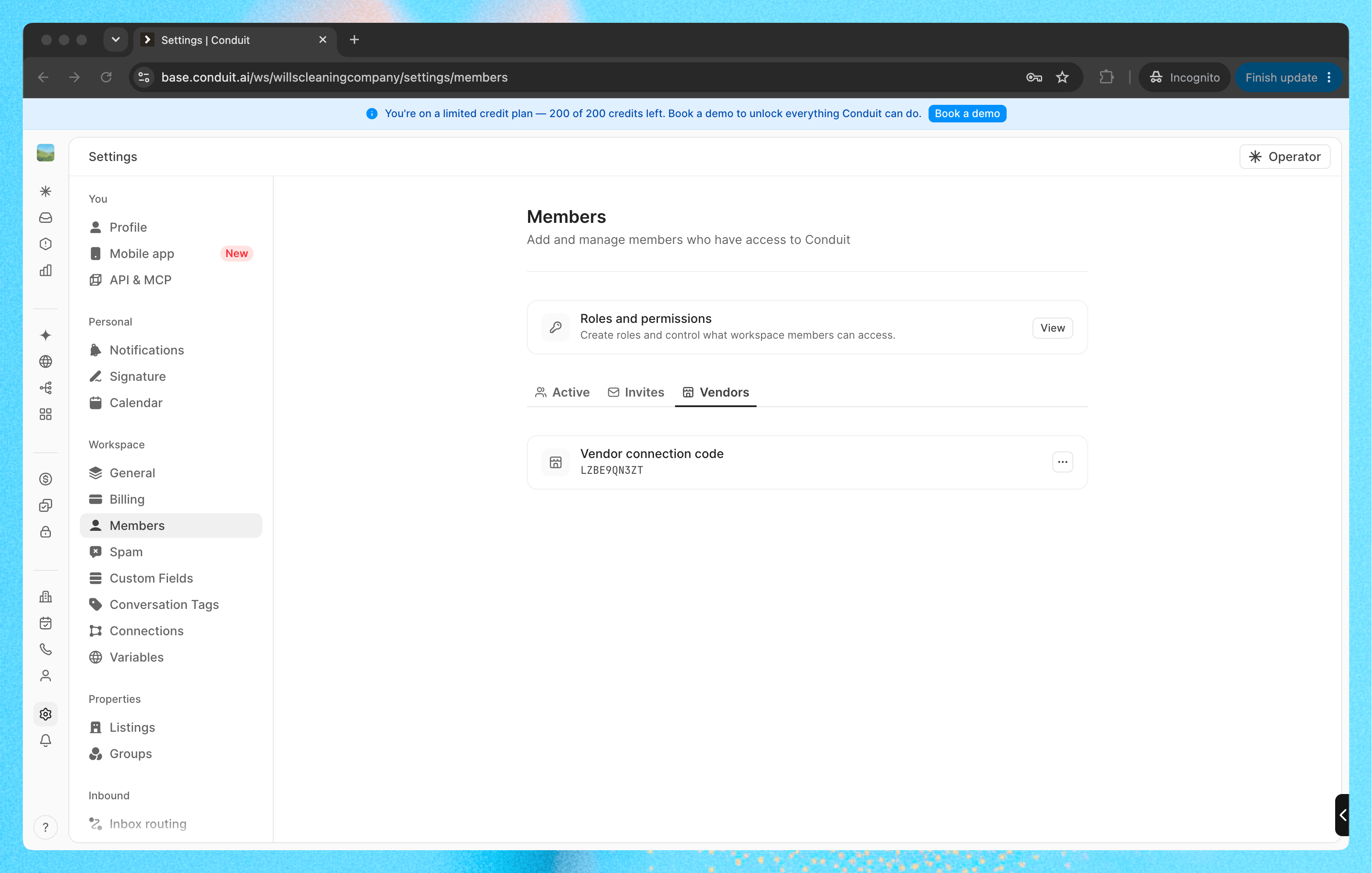
1. Sign up
- Go to base.conduit.ai/sign-up
- Click Sign up with Google, or enter your name, work email and a password and click Continue
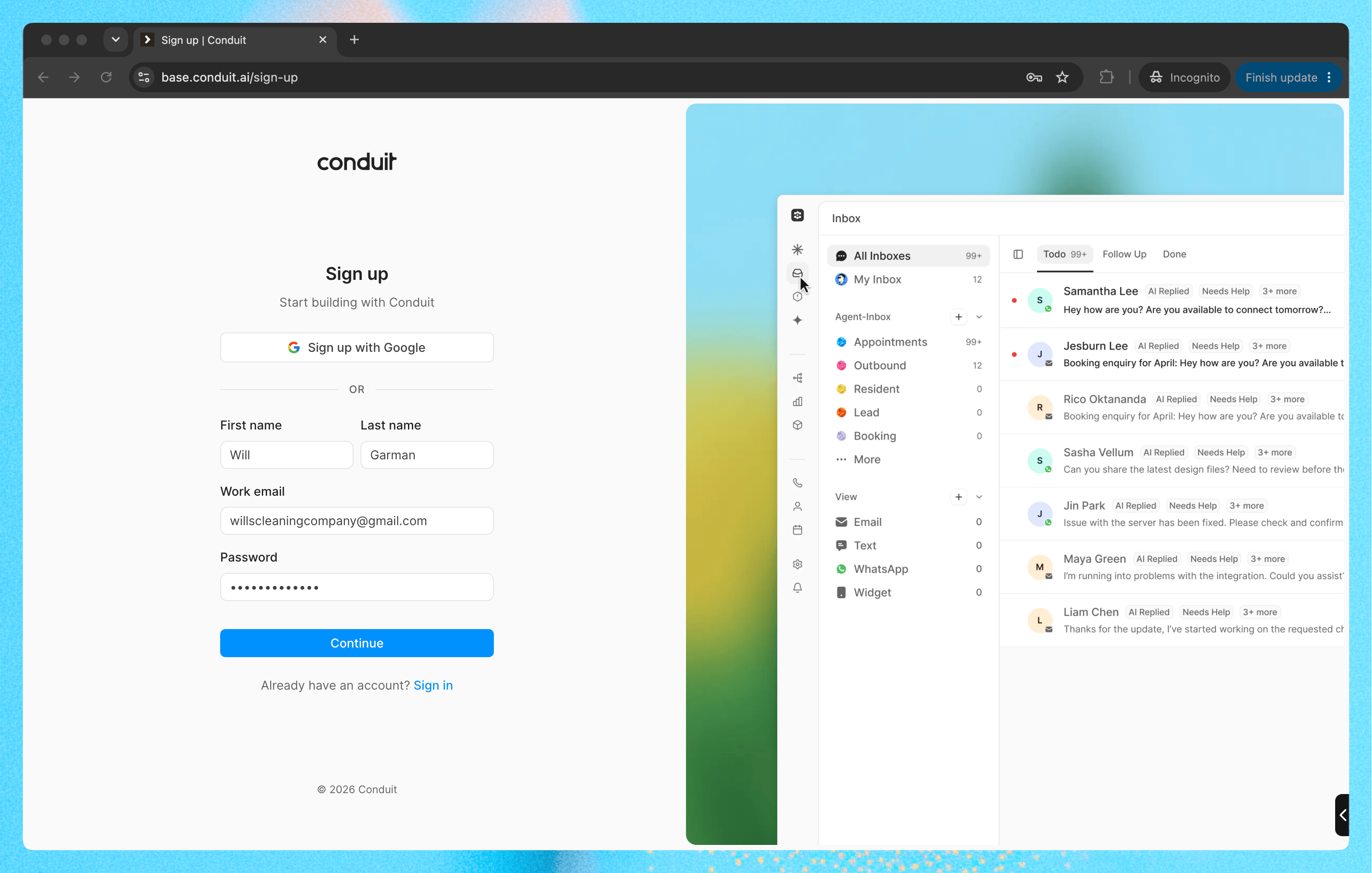
2. Create a vendor workspace
On Company Details:- Enter your company domain and click Fetch, or type a Workspace name
- Set Industry to Vendor
- Pick your Company size and click Continue
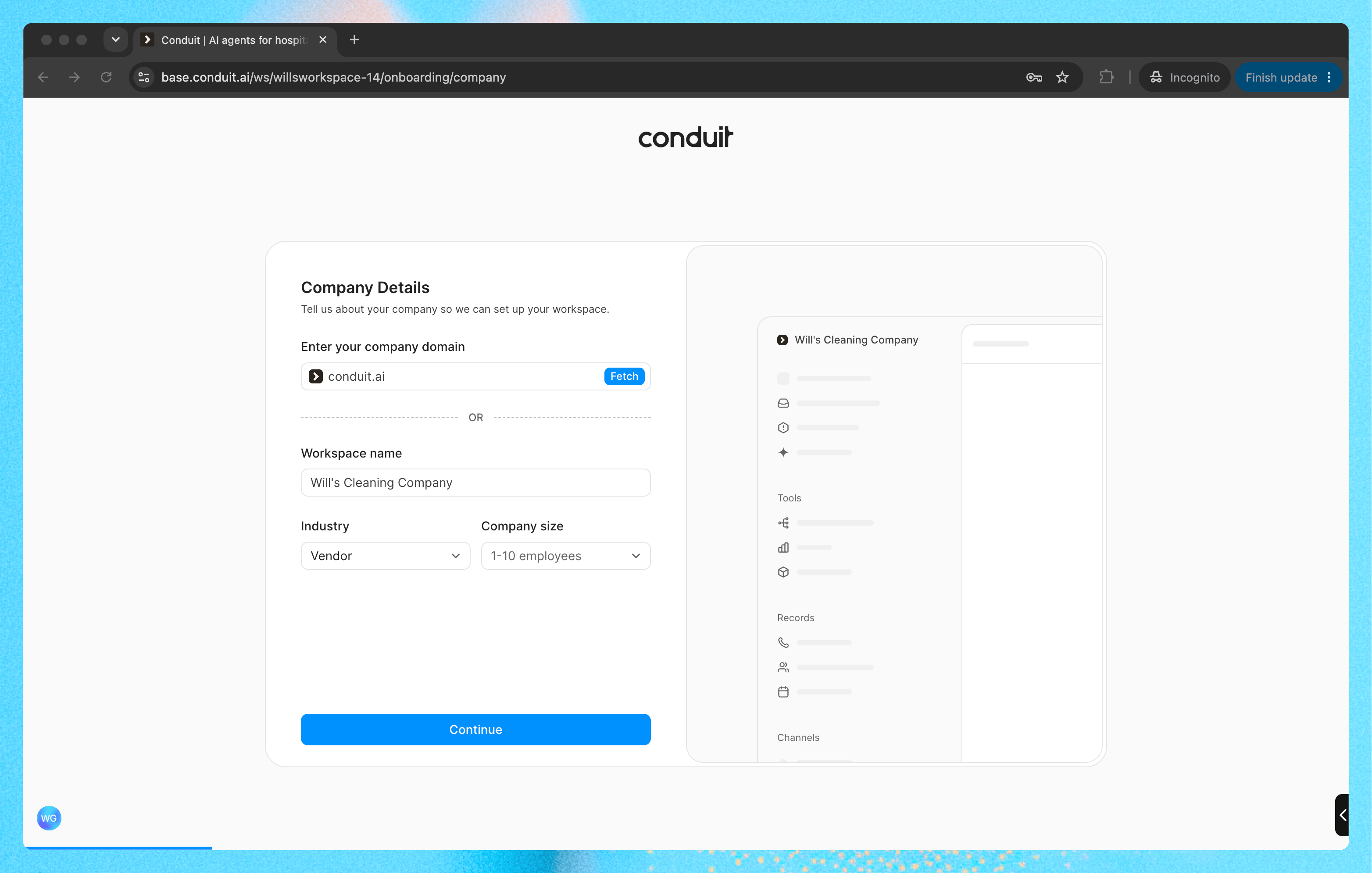
3. Invite your team
On Collaborate with your team, enter each teammate’s email and pick their role, such as Cleaner or Admin. Click Add more for more people, then Send Invites. To do this later, click I’ll invite later in workspace settings and invite people from Settings > Members.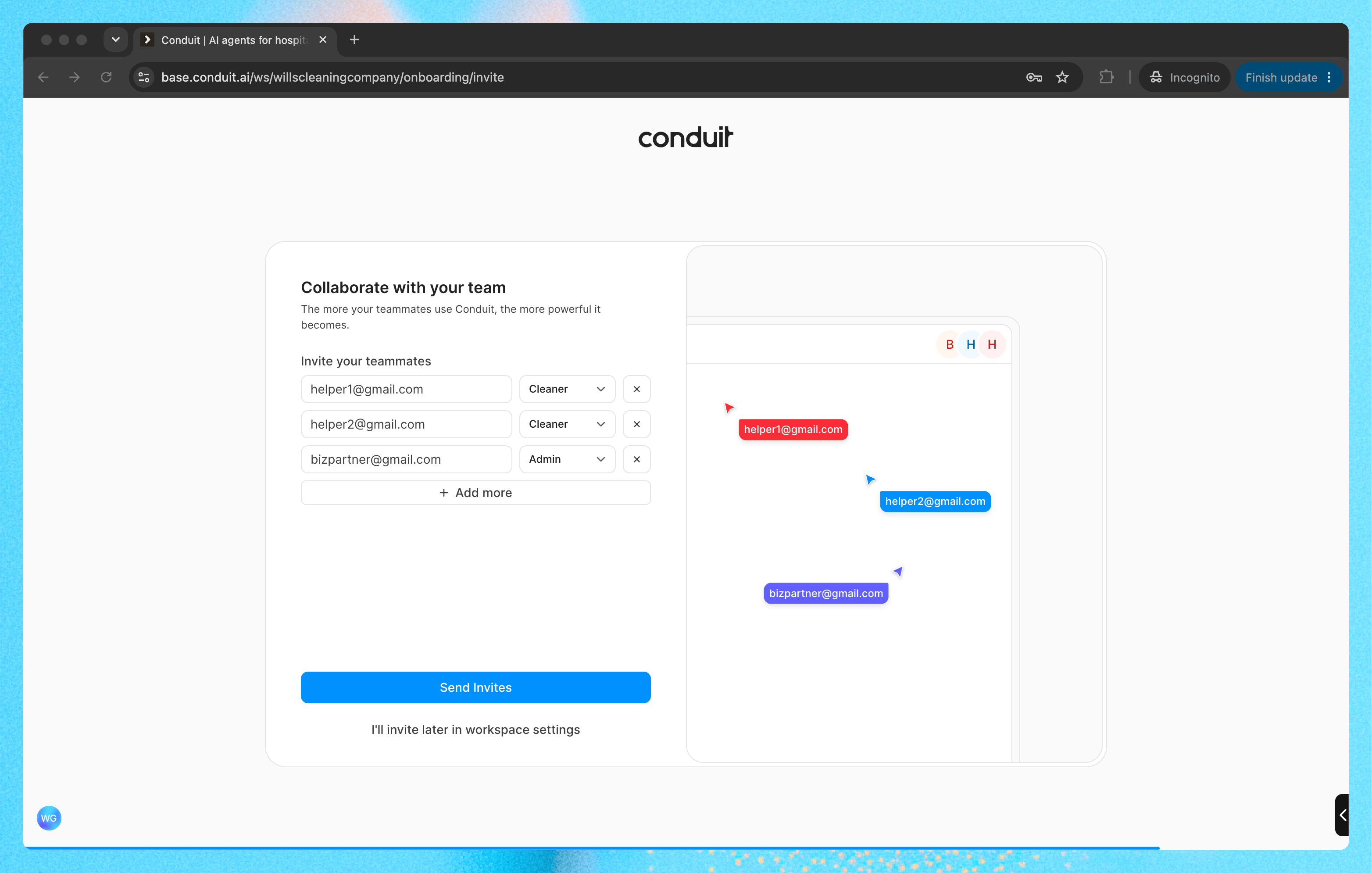
4. Share your connection code
- Go to Settings > Members and open the Vendors tab
- Under Vendor connection code, open the ⋯ menu and click Copy code
- Send the code to each company you work for. They enter it to add you as a vendor
5. Accept clients
When a company enters your code, it shows up under Clients on the same Vendors tab as “Wants to assign tasks to you”.- Click Accept to let them assign you tasks
- Click Decline to delete the request