> ## Documentation Index
> Fetch the complete documentation index at: https://docs.conduit.ai/llms.txt
> Use this file to discover all available pages before exploring further.
# Skills
> Create reusable instructions that help agents handle specific situations.
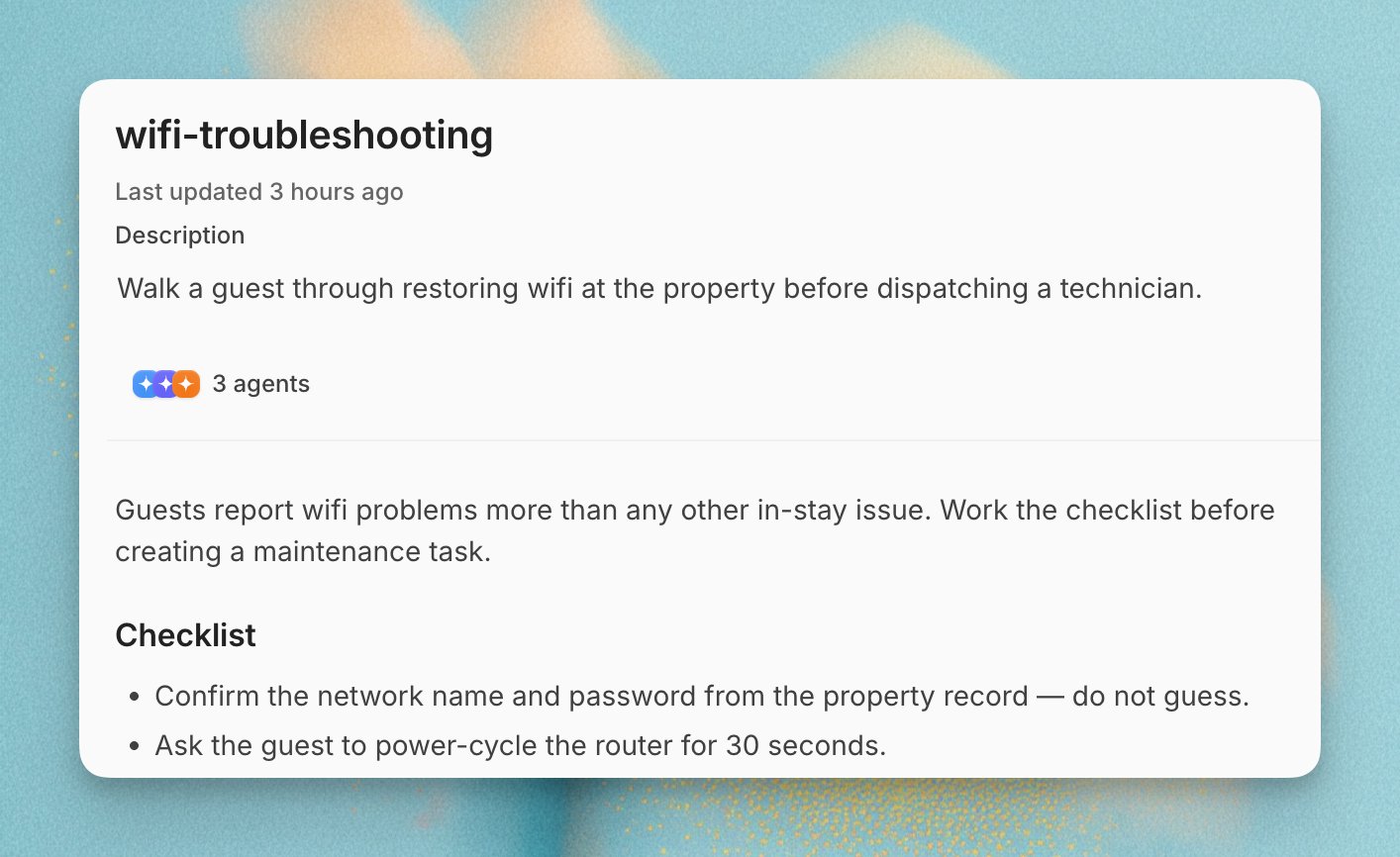
Skills are reusable instructions that tell agents how to handle a specific situation. Use `@` mentions to connect a Skill to tools, workflows, other Skills, listing groups, listings, and reservation statuses.
Open **Agents** from the main sidebar, then select **Skills** from the Agents sidebar.
 ## When to Use Skills
Use Skills for process knowledge that is more than a static fact:
* How to handle a refund request
* How to triage an urgent issue
* How to use a workflow or custom tool
* How to format a specific kind of answer
* How to apply a brand or team operating standard
Use [Knowledge](/build-your-agent/knowledge-base/overview) for facts the agent needs to retrieve. Use Persona for the agent's overall role and tone. Use [Tools](/build-your-agent/tools) for executable actions and the model-facing description of when each action should be used.
A Skill is what bridges the two. Tools give the agent permission to act, and a Skill is the if-this-then-that instruction set that tells it when to act and in what order. You can stack several conditions in one Skill.
## Description and Instructions
Every Skill has two parts, and they do different jobs.
The **description** decides when the Skill is used. The agent reads it to work out whether this Skill applies to the message in front of it, so it needs to spell out what qualifies. "Handles early check-in requests, used whenever a guest asks to arrive before the standard check-in time" is a usable description. "Early check-ins" is not.
The **instructions** decide what happens once the Skill fires. This is where the steps, conditions, tool calls, and expected wording go.
Where a trigger is broad, define it in the description rather than assuming the agent will infer it. An emergency Skill should list what counts as an emergency, for example a guest reporting a lockout, a medical situation, or anything they describe as urgent, and the instructions should then say what to do in each case.
## Create a Skill
Open **Agents** from the main sidebar, then select **Skills** from the Agents sidebar.
Click the add button and choose **With Skill Creator** or **Write Manually**.
Give the Skill a clear title. In the description, explain what the Skill does and when an agent should load it.
Write the scenario, conditions, steps, tool usage, and expected output.
Click **Save**.
New Skills are enabled and assigned to all current agents by default. Disable the Skill or change its agent assignments if needed.
You do not have to write Skills by hand. Describe the job to [Operator](/build-your-agent/operator) in plain language, for example asking it to build a Skill that escalates any conversation mentioning an emergency and tags it accordingly, and it will draft the Skill for you to review and edit. Operator may also suggest a Skill while you are correcting the agent in the inbox, which you can accept.
Every Skill can be toggled on or off. Turn a Skill off while you are still editing it, or when you have installed one from the Marketplace and want to adapt it before your agent starts using it.
## Skill Editor
The Skill editor supports formatted instructions and `@` mentions.
| Feature | Use it for |
| - | - |
| **Title** | Give teammates and agents a clear name for the Skill. |
| **Description** | Explain what the Skill does and when to load it. Agents use this description before they read the instructions. |
| **Formatting** | Organize longer instructions with headings, lists, links, and other rich-text formatting. |
| **`@` mentions** | Reference tools, workflows, Skills, listing groups, listings, and reservation statuses. |
| **Info panel and versions** | Review details, Activity, and previous versions. |
Type `@` in the instruction editor to open the mention menu.
## When to Use Skills
Use Skills for process knowledge that is more than a static fact:
* How to handle a refund request
* How to triage an urgent issue
* How to use a workflow or custom tool
* How to format a specific kind of answer
* How to apply a brand or team operating standard
Use [Knowledge](/build-your-agent/knowledge-base/overview) for facts the agent needs to retrieve. Use Persona for the agent's overall role and tone. Use [Tools](/build-your-agent/tools) for executable actions and the model-facing description of when each action should be used.
A Skill is what bridges the two. Tools give the agent permission to act, and a Skill is the if-this-then-that instruction set that tells it when to act and in what order. You can stack several conditions in one Skill.
## Description and Instructions
Every Skill has two parts, and they do different jobs.
The **description** decides when the Skill is used. The agent reads it to work out whether this Skill applies to the message in front of it, so it needs to spell out what qualifies. "Handles early check-in requests, used whenever a guest asks to arrive before the standard check-in time" is a usable description. "Early check-ins" is not.
The **instructions** decide what happens once the Skill fires. This is where the steps, conditions, tool calls, and expected wording go.
Where a trigger is broad, define it in the description rather than assuming the agent will infer it. An emergency Skill should list what counts as an emergency, for example a guest reporting a lockout, a medical situation, or anything they describe as urgent, and the instructions should then say what to do in each case.
## Create a Skill
Open **Agents** from the main sidebar, then select **Skills** from the Agents sidebar.
Click the add button and choose **With Skill Creator** or **Write Manually**.
Give the Skill a clear title. In the description, explain what the Skill does and when an agent should load it.
Write the scenario, conditions, steps, tool usage, and expected output.
Click **Save**.
New Skills are enabled and assigned to all current agents by default. Disable the Skill or change its agent assignments if needed.
You do not have to write Skills by hand. Describe the job to [Operator](/build-your-agent/operator) in plain language, for example asking it to build a Skill that escalates any conversation mentioning an emergency and tags it accordingly, and it will draft the Skill for you to review and edit. Operator may also suggest a Skill while you are correcting the agent in the inbox, which you can accept.
Every Skill can be toggled on or off. Turn a Skill off while you are still editing it, or when you have installed one from the Marketplace and want to adapt it before your agent starts using it.
## Skill Editor
The Skill editor supports formatted instructions and `@` mentions.
| Feature | Use it for |
| - | - |
| **Title** | Give teammates and agents a clear name for the Skill. |
| **Description** | Explain what the Skill does and when to load it. Agents use this description before they read the instructions. |
| **Formatting** | Organize longer instructions with headings, lists, links, and other rich-text formatting. |
| **`@` mentions** | Reference tools, workflows, Skills, listing groups, listings, and reservation statuses. |
| **Info panel and versions** | Review details, Activity, and previous versions. |
Type `@` in the instruction editor to open the mention menu.
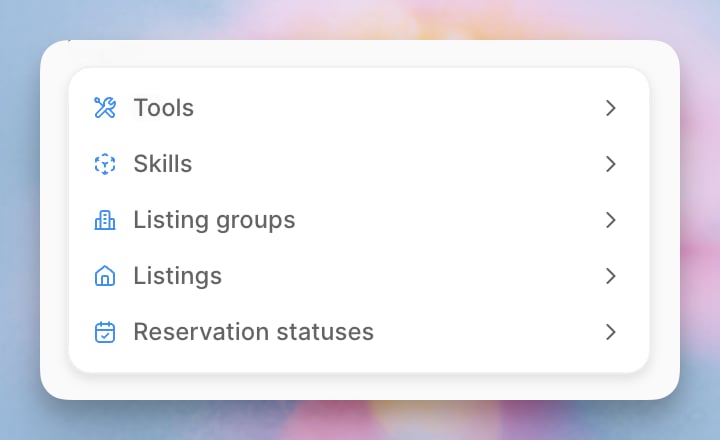 Mentioning a tool tells the agent which tool the instruction refers to. It does not grant access to that tool. Enable the tool from the agent's **Tools** tab first.
## Keep Facts in Knowledge
Skills should describe a process, not repeat facts that already live in Knowledge. Agents can retrieve relevant Knowledge while following a Skill.
* Keep facts, policies, listing details, and other source-backed information in Knowledge.
* Use an `@` mention for another Skill when the current playbook depends on a reusable process, such as escalation handling, refund handling, or appointment rescheduling.
* Keep the current Skill focused on the scenario trigger, decision steps, and expected agent behavior.
For example, a "VIP guest complaint" Skill can mention the "Escalate urgent property issues" Skill for safety-related complaints, while VIP benefits and property details remain in Knowledge.
## Per-Agent Skills
Open an agent and go to **Skills** to control which workspace Skills that agent can use.
New, enabled Skills are assigned to all current agents by default. If a Skill should only apply to one agent, remove it from the other agents after creating it. Disabling a Skill prevents assigned agents from using it. Deleting a Skill removes it from every agent.
## Review Skill Activity
Use the Activity view to see when agents report using a Skill and review what role it played in each run.
1. Open **Agents** from the main sidebar, then select **Skills** from the Agents sidebar.
2. Select a Skill.
3. Click **Activity** next to **Instructions**.
4. Choose the last 7, 30, or 90 days.
The Skill information panel also includes a 30-day summary. Open the panel from the top-right corner of the Skill, select **Activity**, then click **Open full view** to see the run log.
Mentioning a tool tells the agent which tool the instruction refers to. It does not grant access to that tool. Enable the tool from the agent's **Tools** tab first.
## Keep Facts in Knowledge
Skills should describe a process, not repeat facts that already live in Knowledge. Agents can retrieve relevant Knowledge while following a Skill.
* Keep facts, policies, listing details, and other source-backed information in Knowledge.
* Use an `@` mention for another Skill when the current playbook depends on a reusable process, such as escalation handling, refund handling, or appointment rescheduling.
* Keep the current Skill focused on the scenario trigger, decision steps, and expected agent behavior.
For example, a "VIP guest complaint" Skill can mention the "Escalate urgent property issues" Skill for safety-related complaints, while VIP benefits and property details remain in Knowledge.
## Per-Agent Skills
Open an agent and go to **Skills** to control which workspace Skills that agent can use.
New, enabled Skills are assigned to all current agents by default. If a Skill should only apply to one agent, remove it from the other agents after creating it. Disabling a Skill prevents assigned agents from using it. Deleting a Skill removes it from every agent.
## Review Skill Activity
Use the Activity view to see when agents report using a Skill and review what role it played in each run.
1. Open **Agents** from the main sidebar, then select **Skills** from the Agents sidebar.
2. Select a Skill.
3. Click **Activity** next to **Instructions**.
4. Choose the last 7, 30, or 90 days.
The Skill information panel also includes a 30-day summary. Open the panel from the top-right corner of the Skill, select **Activity**, then click **Open full view** to see the run log.
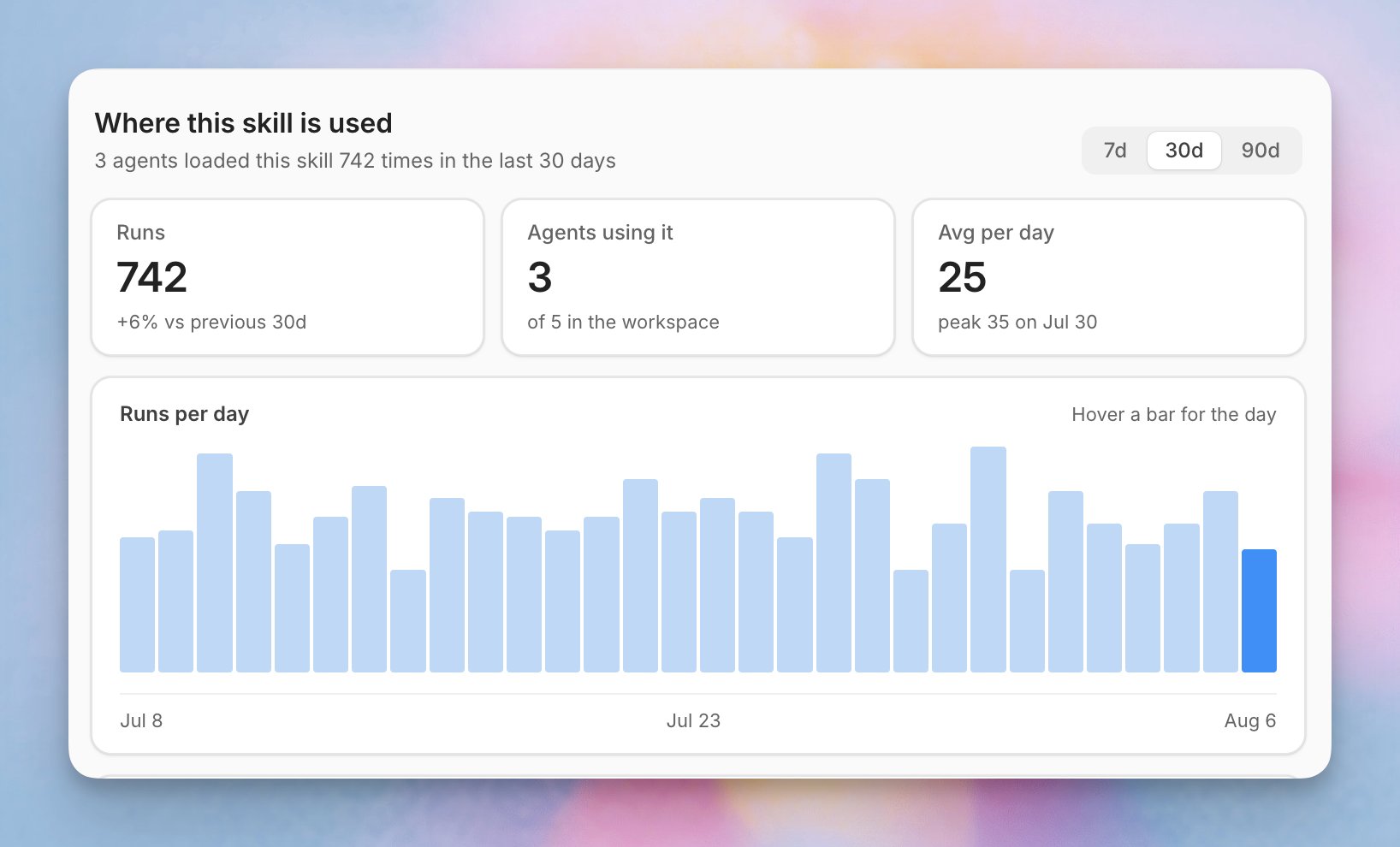 The summary shows:
* **Runs**: Agent runs attributed to the Skill during the selected period.
* **Agents using it**: Active agents with at least one attributed run during the selected period.
* **Average per day**: The average number of attributed runs each day.
* **Runs per day**: A daily view of attributed runs. Hover over a bar to see the exact count.
An **attributed** run means the agent reported using the Skill. Attribution alone does not prove that the Skill changed the response. Click **Explain** to ask Operator to assess its influence. An **in-context** run means the Skill was available from an earlier run in the session, but the agent did not report using it in this run. The summary and chart count attributed runs only; the run log includes both types.
### Filter Activity
Select an agent under **Agents running this Skill** to filter the run log. Use the disposition menu above the run log to show runs with a specific result.
### Read the Run Log
The run log shows when the run happened, which agent handled it, its related conversation when available, its disposition, and how long the run took.
* When a run is linked to an Inbox conversation, click the conversation to open it in a new tab.
* Hover over a disposition dot to see what it means.
* Click **Explain** on an attributed run to ask Operator how the Skill affected the response.
* Use the **Open in inbox** icon from an explanation to review the full conversation when one is available.
* Use **Continue in Operator** when you want to ask follow-up questions about the explanation.
Operator may describe the Skill's influence as:
| Result | Meaning |
| - | - |
| **Shaped the reply** | The Skill directly influenced what the agent said or decided. |
| **Incidental** | The Skill was present, but was not important to the response. |
| **Not evident** | Operator could not find clear evidence that the Skill was used. |
### Understand Dispositions
A disposition describes what happened at the end of the agent run.
| Disposition | Meaning |
| - | - |
| **Resolved** | The agent fully answered the contact. No follow-up is expected. |
| **Unresolved** | The agent replied, but the conversation is still open. |
| **Escalated** | No reply was sent. A teammate needs to review the conversation first. |
| **Escalation + Answer** | The agent sent a safe reply and asked a teammate to follow up. |
| **No op** | No reply was sent because the latest message did not need one. |
| **Proactive** | The agent sent a scheduled message without waiting for a new contact message. |
## Examples
### Reusable Brand Voice
Use a Skill when the agent needs a repeatable style for a specific situation:
> When responding to a VIP customer, acknowledge their status, keep the reply concise, and offer a concrete next step. Do not over-apologize.
### Escalation Process
Use a Skill when the agent needs a conditional playbook:
> If the customer reports property damage, ask for a photo, collect the reservation ID if available, and escalate to the operations team. Do not promise reimbursement.
### Tool-Use Instruction
Use a Skill when the agent needs to call a workflow or custom tool:
> If a guest asks to reschedule an appointment, check availability with the appointment tool before offering times. Only confirm after the tool returns an available slot.
## Maintenance
Review Skills when escalations repeat, when a tool changes, or when a policy changes. A good Skill is specific enough to trigger in the right scenario and narrow enough that it does not compete with unrelated Skills.
This documentation is built and hosted on [Mintlify](https://mintlify.com), a developer documentation platform.
The summary shows:
* **Runs**: Agent runs attributed to the Skill during the selected period.
* **Agents using it**: Active agents with at least one attributed run during the selected period.
* **Average per day**: The average number of attributed runs each day.
* **Runs per day**: A daily view of attributed runs. Hover over a bar to see the exact count.
An **attributed** run means the agent reported using the Skill. Attribution alone does not prove that the Skill changed the response. Click **Explain** to ask Operator to assess its influence. An **in-context** run means the Skill was available from an earlier run in the session, but the agent did not report using it in this run. The summary and chart count attributed runs only; the run log includes both types.
### Filter Activity
Select an agent under **Agents running this Skill** to filter the run log. Use the disposition menu above the run log to show runs with a specific result.
### Read the Run Log
The run log shows when the run happened, which agent handled it, its related conversation when available, its disposition, and how long the run took.
* When a run is linked to an Inbox conversation, click the conversation to open it in a new tab.
* Hover over a disposition dot to see what it means.
* Click **Explain** on an attributed run to ask Operator how the Skill affected the response.
* Use the **Open in inbox** icon from an explanation to review the full conversation when one is available.
* Use **Continue in Operator** when you want to ask follow-up questions about the explanation.
Operator may describe the Skill's influence as:
| Result | Meaning |
| - | - |
| **Shaped the reply** | The Skill directly influenced what the agent said or decided. |
| **Incidental** | The Skill was present, but was not important to the response. |
| **Not evident** | Operator could not find clear evidence that the Skill was used. |
### Understand Dispositions
A disposition describes what happened at the end of the agent run.
| Disposition | Meaning |
| - | - |
| **Resolved** | The agent fully answered the contact. No follow-up is expected. |
| **Unresolved** | The agent replied, but the conversation is still open. |
| **Escalated** | No reply was sent. A teammate needs to review the conversation first. |
| **Escalation + Answer** | The agent sent a safe reply and asked a teammate to follow up. |
| **No op** | No reply was sent because the latest message did not need one. |
| **Proactive** | The agent sent a scheduled message without waiting for a new contact message. |
## Examples
### Reusable Brand Voice
Use a Skill when the agent needs a repeatable style for a specific situation:
> When responding to a VIP customer, acknowledge their status, keep the reply concise, and offer a concrete next step. Do not over-apologize.
### Escalation Process
Use a Skill when the agent needs a conditional playbook:
> If the customer reports property damage, ask for a photo, collect the reservation ID if available, and escalate to the operations team. Do not promise reimbursement.
### Tool-Use Instruction
Use a Skill when the agent needs to call a workflow or custom tool:
> If a guest asks to reschedule an appointment, check availability with the appointment tool before offering times. Only confirm after the tool returns an available slot.
## Maintenance
Review Skills when escalations repeat, when a tool changes, or when a policy changes. A good Skill is specific enough to trigger in the right scenario and narrow enough that it does not compete with unrelated Skills.
This documentation is built and hosted on [Mintlify](https://mintlify.com), a developer documentation platform.