> ## Documentation Index
> Fetch the complete documentation index at: https://docs.conduit.ai/llms.txt
> Use this file to discover all available pages before exploring further.
# Mobile app
> Push notifications and phone calls in the Conduit mobile app
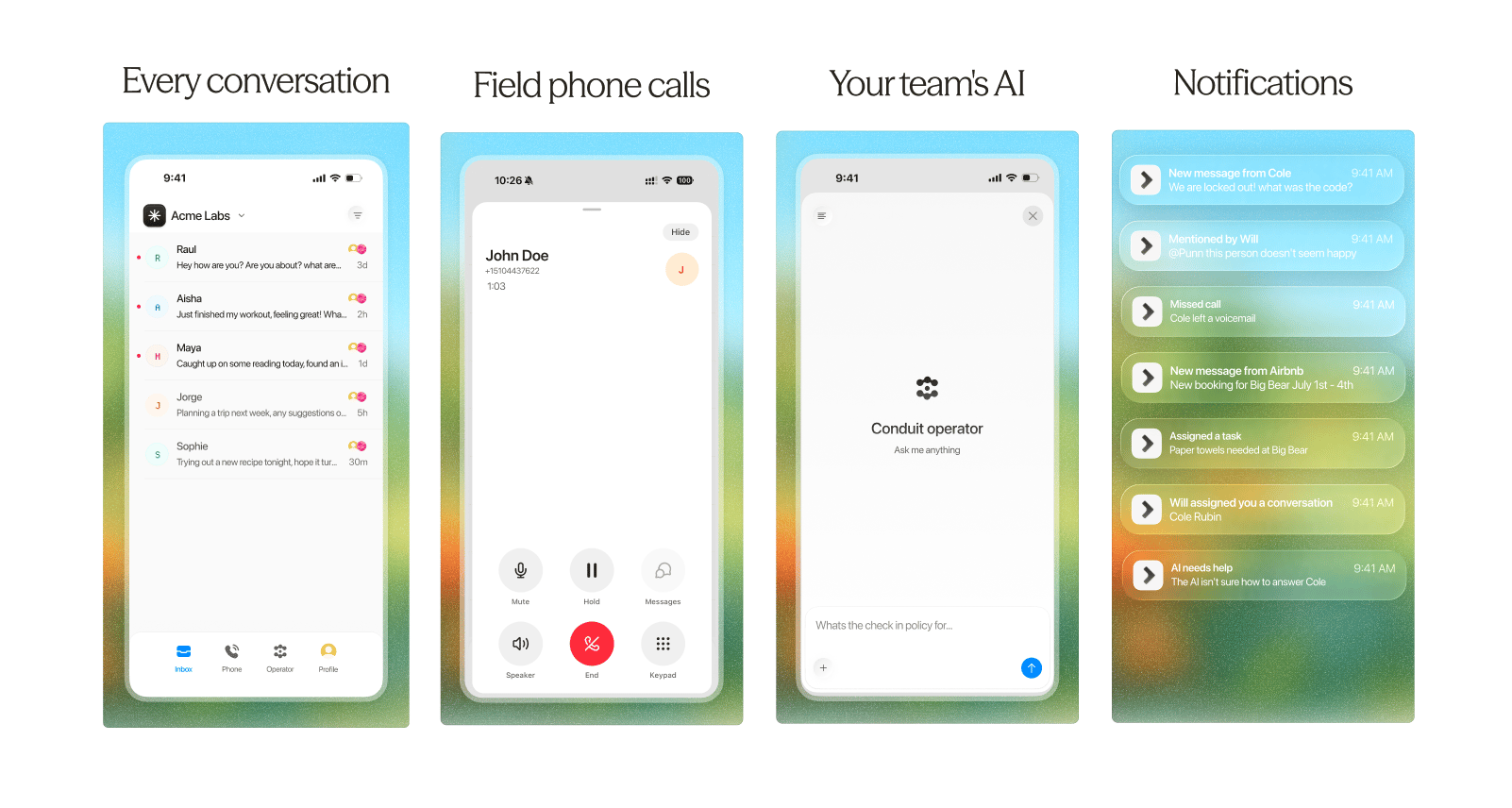 The Conduit mobile app puts your inbox, the Operator, and phone calls on your iPhone or Android device. It uses the same account and settings as the web app, so most things carry over once you sign in.
## Download the app
Get Conduit Mobile from the App Store.
Get Conduit Mobile from Google Play.
## Push notifications
The Conduit mobile app puts your inbox, the Operator, and phone calls on your iPhone or Android device. It uses the same account and settings as the web app, so most things carry over once you sign in.
## Download the app
Get Conduit Mobile from the App Store.
Get Conduit Mobile from Google Play.
## Push notifications
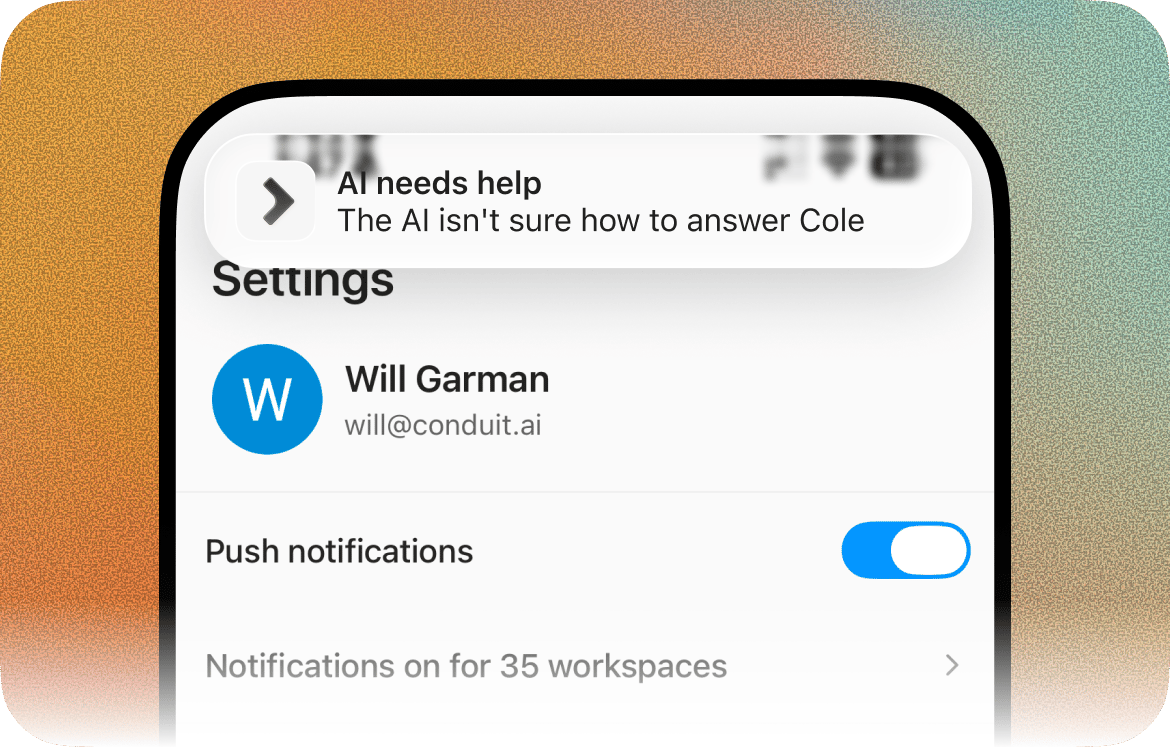 Push notifications alert you on your phone when something needs your attention, even when the app is closed.
### Turn them on
When you first sign in, the app asks permission to send push notifications. You can change this any time:
1. Open the app and go to the **Profile** tab.
2. Toggle **Push notifications** on or off
If you denied the permission earlier, the toggle sends you to your phone's system settings to turn it on.
Your mobile notifications mirror what you've already set on the web. Whatever notification types you have enabled under **Settings → Notifications** on web are exactly what you'll be notified about on your phone. There's no separate per-type setup in the app.
### Mute a specific workspace
If you belong to more than one workspace, you can silence individual ones without turning everything off:
1. In the **Profile** tab, tap the **Notifications on for X workspaces** row (it shows how many of your workspaces have notifications on).
2. In the list that opens, toggle any workspace off to stop its notifications (push, in-app, and calls) everywhere. This is the same per-workspace setting as **Settings → Notifications** on web, so muting here mutes it on the web too.
## Phone calls
Push notifications alert you on your phone when something needs your attention, even when the app is closed.
### Turn them on
When you first sign in, the app asks permission to send push notifications. You can change this any time:
1. Open the app and go to the **Profile** tab.
2. Toggle **Push notifications** on or off
If you denied the permission earlier, the toggle sends you to your phone's system settings to turn it on.
Your mobile notifications mirror what you've already set on the web. Whatever notification types you have enabled under **Settings → Notifications** on web are exactly what you'll be notified about on your phone. There's no separate per-type setup in the app.
### Mute a specific workspace
If you belong to more than one workspace, you can silence individual ones without turning everything off:
1. In the **Profile** tab, tap the **Notifications on for X workspaces** row (it shows how many of your workspaces have notifications on).
2. In the list that opens, toggle any workspace off to stop its notifications (push, in-app, and calls) everywhere. This is the same per-workspace setting as **Settings → Notifications** on web, so muting here mutes it on the web too.
## Phone calls
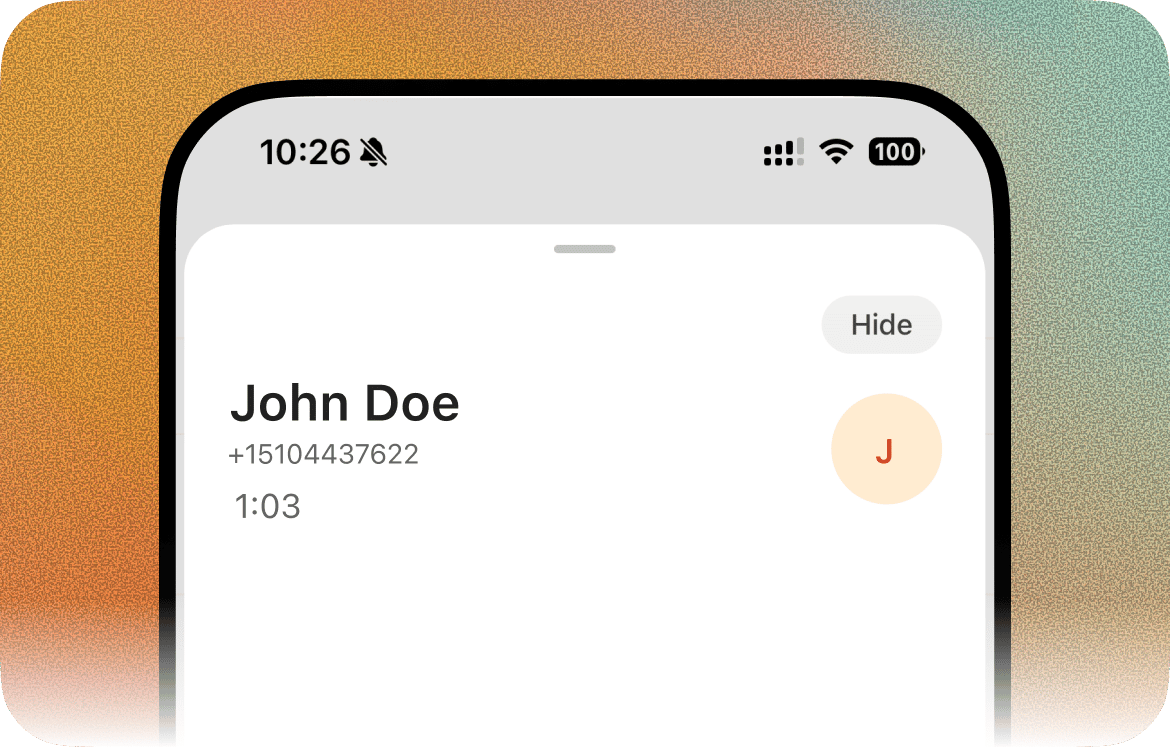 You can place and receive Conduit phone calls directly from the app.
### To receive calls, you must be in a call group
For calls to ring your phone through the app, your user has to be a member of a **call group**. If you're not in one, calls won't reach your device, even with the app installed and notifications on.
You add yourself (or get added) to a call group on the web:
1. On web, go to **Settings > Phone** under Channels, then open **Call groups**.
2. Open the relevant call group and add your user as a member.
Once you're in a call group, calls routed to that group ring your phone in the app. Keep push notifications on, since that's how an incoming call reaches the app when it's backgrounded or closed.
### Transferring a call
While on a call, tap **Transfer** to hand it off to a teammate or another phone number. You'll be asked to pick between two kinds of transfer:
Puts the caller on hold and rings the person you're transferring to. When they pick up, you're talking with them privately — the caller still hears hold music. Brief them on the call, then tap **Complete** to bridge them together and drop yourself off. If they don't answer or you change your mind, tap **Cancel transfer** and the caller comes back to you.
Hands the caller off immediately and ends the call on your end. If the target doesn't pick up, the caller flows to the fallback number on that Twilio line, or to voicemail if none is set. Use this when you don't need to talk to the person you're transferring to first.
This documentation is built and hosted on [Mintlify](https://mintlify.com), a developer documentation platform.
You can place and receive Conduit phone calls directly from the app.
### To receive calls, you must be in a call group
For calls to ring your phone through the app, your user has to be a member of a **call group**. If you're not in one, calls won't reach your device, even with the app installed and notifications on.
You add yourself (or get added) to a call group on the web:
1. On web, go to **Settings > Phone** under Channels, then open **Call groups**.
2. Open the relevant call group and add your user as a member.
Once you're in a call group, calls routed to that group ring your phone in the app. Keep push notifications on, since that's how an incoming call reaches the app when it's backgrounded or closed.
### Transferring a call
While on a call, tap **Transfer** to hand it off to a teammate or another phone number. You'll be asked to pick between two kinds of transfer:
Puts the caller on hold and rings the person you're transferring to. When they pick up, you're talking with them privately — the caller still hears hold music. Brief them on the call, then tap **Complete** to bridge them together and drop yourself off. If they don't answer or you change your mind, tap **Cancel transfer** and the caller comes back to you.
Hands the caller off immediately and ends the call on your end. If the target doesn't pick up, the caller flows to the fallback number on that Twilio line, or to voicemail if none is set. Use this when you don't need to talk to the person you're transferring to first.
This documentation is built and hosted on [Mintlify](https://mintlify.com), a developer documentation platform.